
Mobile App Overview
The Chisel Tide mobile app is designed for field technicians who service pools. Use the app to view your assigned route for the day, navigate between stops, complete service visits, capture photos, record chemistry readings, manage your truck inventory, and watch training videos. You can work even when you don't have cell service.
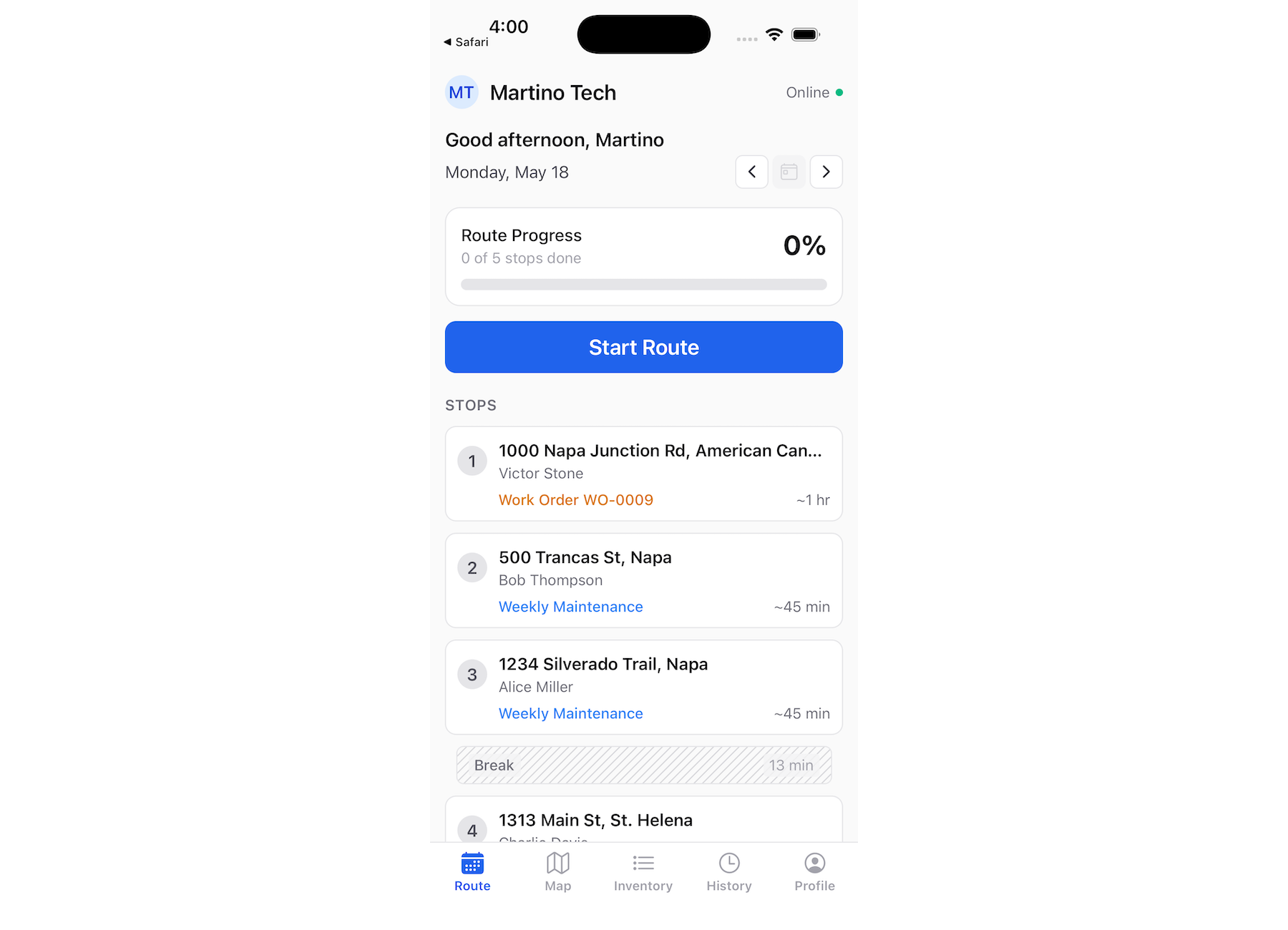
Field technicians use the mobile app to run their day. When you sign in as a technician, the app verifies that your account has a technician role.
Owners and admins can also sign in to the mobile app to view any technician’s route in read-only mode. Use the Technician picker (Select Technician) to choose whose day you are watching. In read-only mode you cannot start or continue a route, reorder stops, or run the visit workflow—you can open completed visits in History.
Technicians who open the web admin app are directed to install the mobile app instead.
The six main tabs
The app is organized around six tabs at the bottom of the screen. Each tab serves a distinct purpose in your daily workflow:
Route
The Route tab is your starting point each morning. It shows your daily progress, including how many stops are completed and how many remain. You can also view routes from the past 5 days and upcoming 5 days to plan ahead or review completed work.
When viewing today's route and you're ready to begin, tap Start Route to launch into your first stop. If you've already started your route and take a break, tap Continue Route to pick up where you left off. Start Route and Continue Route are only available for today's route—you cannot execute past or future routes. Technicians can open Reorder stops to move upcoming stops up or down for the day.
The tab displays a timeline of your stops with status indicators, estimated times, and checklist progress, so you can see your day at a glance. Stops can include both recurring service visits and one-time work order jobs.
Map
The Map tab shows your route geographically. View all your stops plotted on a map with route lines connecting them. Markers indicate which stops are completed, in progress, or pending. You can toggle whether to show your home location as a reference point.
Use this tab to visualize your route and get directions between stops.
Inventory
The Inventory tab manages the chemicals and parts on your truck. At the start of the day, load items onto your truck by searching for products or scanning barcodes. As you complete service visits and log chemical usage, the app tracks what you've used. At the end of the day, return any remaining items to inventory.
History
The History tab shows your completed service visits. Browse past jobs by date, expand visit cards to see photos, notes, arrival and departure times, and checklist completion. Use this tab to reference work you've completed or review details from a previous visit.
Help
The Help tab is a library of training videos covering common pool service tasks. Videos are grouped into four categories: cleaning, water chemistry, service tasks, and compliance and safety. Use the search bar to filter videos by keyword, then tap any video to open it in a full-screen player with playback speed controls (0.5× to 2×).
Training videos require an internet connection. You can browse and search the catalog offline, but videos won't play until you're back online.
The Help tab also links to Chisel Tide's full user guide, which opens inside the app in your selected language.
Profile
The Profile tab shows your technician profile and performance stats. Your contact information, certifications, and skills are managed by your office and shown read-only—contact your office manager to change them. You can adjust your route preferences, select your preferred language (English or Spanish), and sign out of the app.
Key features
Route execution
When you start a route, the app guides you through each stop with a structured workflow. For each service visit, you can:
Send "On My Way" notifications to customers
Mark your arrival
Start service and complete required checklists
Capture before-and-after photos
Log pool chemistry readings
Record chemical usage
Add notes and flag issues
Complete or skip the stop, or use Unskip Stop if a stop was skipped by mistake. Office-added visit notes and property general service notes help you see one-time and standing instructions for the stop
PoolIQ assistant
When you record pool chemistry readings, the PoolIQ assistant helps interpret the results. PoolIQ can suggest chemical treatments based on your readings and help troubleshoot pool issues. This AI-powered assistant draws on your company's chemical catalog to provide relevant recommendations. See PoolIQ for the full set of modes and how to use them.
Offline support
The app works even without cellular or WiFi connectivity. You can complete your entire route in airplane mode. As you work, the app stores your changes locally. When connectivity returns, your data syncs automatically to the server.
If you had pending changes while offline, you'll see a brief "Syncing updates" overlay when connectivity is restored. The app syncs your completed visits, photos, and chemistry readings so everything is saved.
Queued updates and photos survive an app restart or device reboot, so work you recorded offline isn't lost if the app closes mid-route. They sync when you're back online.
Some features require an active connection. Tapping On My Way won't notify customers immediately—the notification will be sent once connectivity is restored. AI-powered features like PoolIQ also require a connection and won't be available while offline.
Multi-language support
The app is available in both English and Spanish. Switch languages anytime from the Profile tab.
Getting started
To use the mobile app, download Chisel Tide from the iOS App Store or Google Play Store. Sign in with your work email address using magic link authentication—no password required.
Once signed in, your assigned route for the day appears on the Route tab. If you don't see a route, contact your dispatcher to confirm you've been assigned to a route for today.
First-run welcome screen
The first time you sign in, a welcome screen appears with an overview of each tab and a language selector. Pick English or Spanish, then tap Continue to enter your tabs. The welcome screen appears only once — subsequent sign-ins go straight to your Route tab.