
Portal Overview
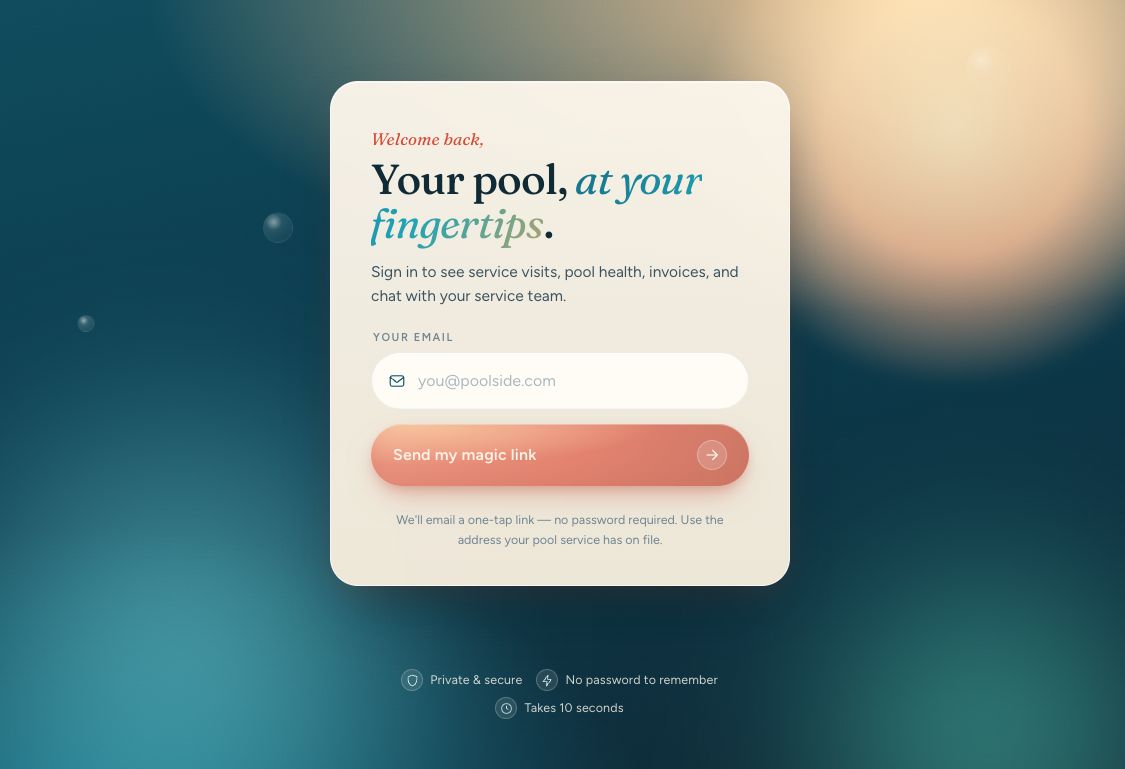
The Customer Portal is a web app where your customers—pool owners—view their service history, manage billing, and communicate with your team. It's separate from your Chisel Tide dashboard and gives customers self-service access to their account information without needing to call or email you.
How customers access the portal
Customers sign in using magic link authentication—similar to the passwordless approach used for business users. They enter Your email or phone, receive a link, and click it to sign in. Email links expire after 24 hours and SMS links after 4 hours. If a person can access more than one customer account, the portal shows Switch account so they can move between those accounts after sign-in.
This authentication is completely separate from your team's sign-in. Customers don't have access to your Admin Dashboard, and your staff don't sign in as customers. Owners and admins can preview the portal from the Admin Dashboard.
You can disable portal access for individual customers if needed. When disabled, the customer sees a message indicating their account access has been turned off, and they're instructed to contact you directly.
The six portal tabs
The portal is organized into six main areas, each accessible from a bottom tab bar:
Health
The Health tab is the portal home. It shows customers their pool's current condition at a glance, including balance, next service, recent visits, and chemistry. Readings are shown as recorded measurements — no score, grade, trend, target range, warning icon, or dosing recommendation is assigned. Values that weren't measured are left out rather than shown as zero.
Before the first service visit, customers see a welcome message explaining that their pool health and service story will appear once their first visit is complete.
Work Orders
Customers view and respond to work order quotes here. The tab shows all work orders organized by status: All, Needs action, Active, and Done. When a customer opens a quoted work order, they can approve the quote with the Approve · [total] button (which shows the quote total), Approve & sign electronically, or Decline. Customers can also view photos and signatures for each work order.
For more on the work order lifecycle and how customers interact with quotes, see Work Orders.
While a quoted work order is awaiting approval, customers may receive email or text follow-ups that link back to the quote. Approving or declining the quote stops further follow-ups. See Approval reminders for proposals and quotes.
History
The History tab shows customers their complete service record—every completed, skipped, or cancelled visit. Visit entries may include photos and notes from your technicians when available.
Messages
Customers use this tab to send messages to your service team. It provides a direct communication channel for questions, requests, or concerns without requiring a phone call or separate email thread.
Billing
Customers view and pay invoices, manage saved payment methods, and configure autopay. They can also view any active payment plans. This tab requires you to have Stripe connected to accept online payments.
Account
Customers update their contact information here: phone number, alternate phone, and preferred contact method (email or text message). The Account tab also provides shortcuts to autopay configuration and saved payment methods, which link to the appropriate sections in Billing. Service update notifications are managed directly in the Account tab.
Key customer capabilities
Through the Customer Portal, your customers can:
Monitor pool health — View their pool's chemistry readings and recent visit information
Review service history — See photos and notes from every completed visit
Approve or decline quotes — Respond to work order quotes without a phone call
Communicate with your team — Send messages through the portal
Pay invoices — View and pay outstanding invoices online via credit card or bank transfer (ACH) when available
Set up autopay — Authorize automatic payments for recurring invoices
Manage payment plans — View installment schedules for payment plans you've set up
Update contact preferences — Change phone numbers and preferred contact method. Switch among multiple accessible customer accounts when applicable
What you control
As the service provider, you manage the customer's experience from your Admin Dashboard:
Portal access — Enable or disable a customer's ability to sign in
Service history visibility — Customers see visits you complete on their routes
Work order quotes — You decide when to send quotes for customer approval
Payment options — Autopay and payment plans require you to connect Stripe
Preview the customer portal
You can preview what a customer sees when they sign in to the portal without leaving your admin dashboard. Open any customer record and click View Portal as Customer in the Customer Portal card. The portal opens in a new tab with a read-only session that lasts 15 minutes.
The preview shows the real portal — not a static mockup. You can see the customer's health, history, work orders, messages, and billing tabs exactly as they appear to the customer, but you cannot make changes. Portal write actions are blocked during a preview session.
The customer must already have portal access enabled for the preview to work. When portal access is turned off, the Customer Portal card and its preview button are hidden.
Next steps
Set up Stripe billing to let customers pay invoices and enable autopay
Learn about work orders to understand the quote approval workflow customers use