
Settings overview
The Company Settings page is where you configure every aspect of your organization in Chisel Tide — from your company profile and branding to integrations and workspace tools. Open it by clicking Settings in the bottom navigation from the admin dashboard.
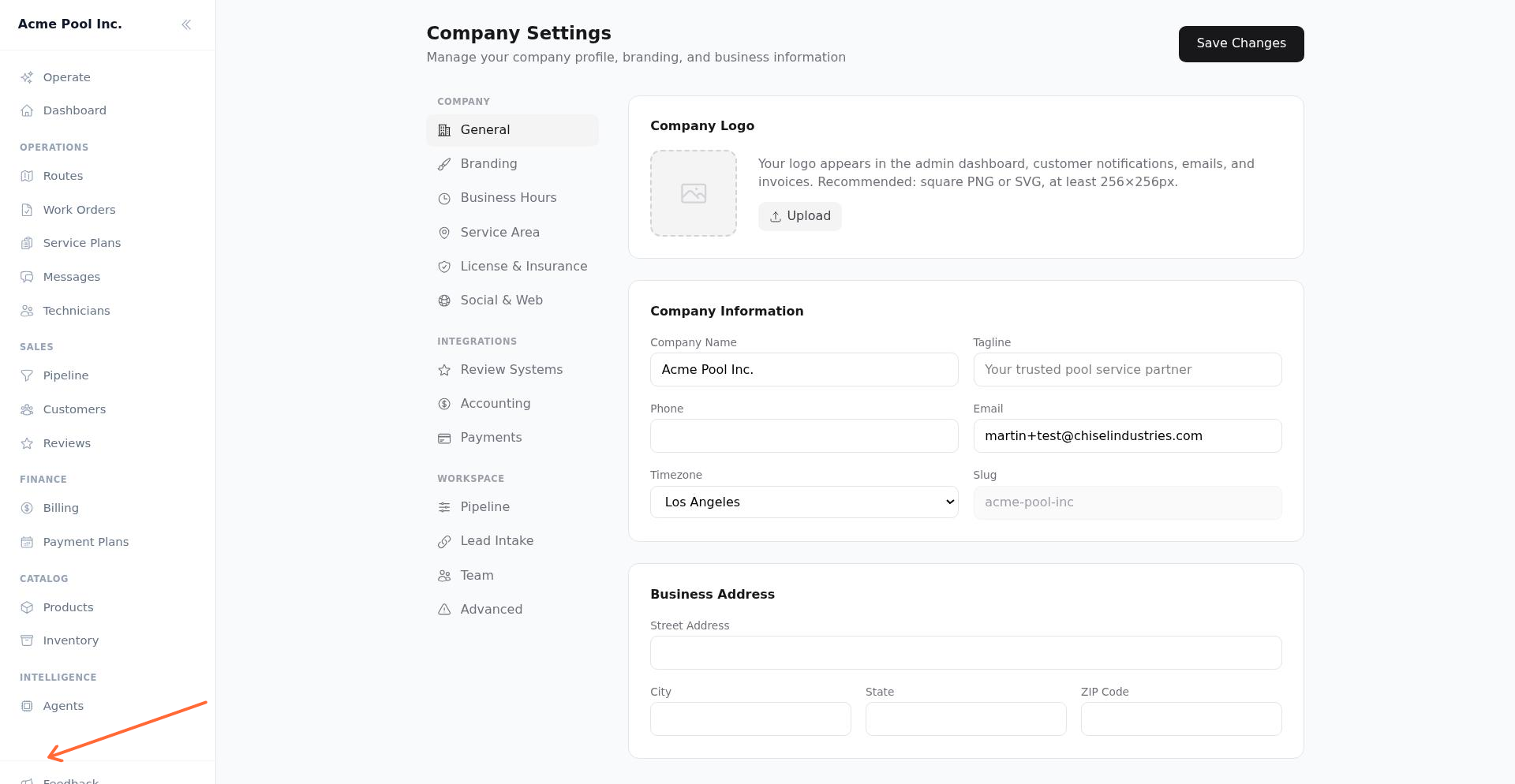
The page uses a left-side menu grouped into three areas: Company, Integrations, and Workspace. Click any section to jump directly to it. Applicable sections have a Save Changes button below their inputs — the button shows Saving… while processing and Saved when complete. Some sections save through their own or immediate controls instead.
Company
These sections control how your business appears to customers and staff across the platform.
General — Company logo, company name, tagline, phone, email, timezone, and business address.
Branding — Primary and secondary brand colors used in customer emails, invoices, and the customer portal. Includes a live preview.
Business — Business hours, service area description, license and insurance credentials, and default sales tax rate.
Social & Web — Company website URL and links to your Facebook, Instagram, Google Business, Yelp, and Nextdoor profiles.
Integrations
Connect Chisel Tide to external platforms for reviews, accounting, and payments.
Review Systems — Connect your Google Business Profile to sync and respond to reviews. Yelp integration is coming soon.
Accounting — Connect QuickBooks Online to sync customers, invoices, and payments for bookkeeping.
Payments — Connect Stripe to accept credit card and ACH payments from customers. Also configures your billing cycle day and billing model for recurring invoices.
Workspace
Configure tools and workflows for your team's operations.
Team — Add and manage team members, assign roles (Owner, Admin, Technician), and control dashboard and mobile app access.
Pipeline — Customize your sales pipeline stages, colors, and ordering for lead tracking.
Lead Intake — Get your hosted lead-capture form URL and API key for programmatic lead submission from your website or other sources.
Advanced — Contains the Delete Organization action. This permanently removes all data and cannot be undone.