
If the assistant responds with "I wasn't able to put together an answer for that", try rephrasing your question with more specific terms or narrower scope. The assistant works best with concrete questions about your data.
The Operate assistant
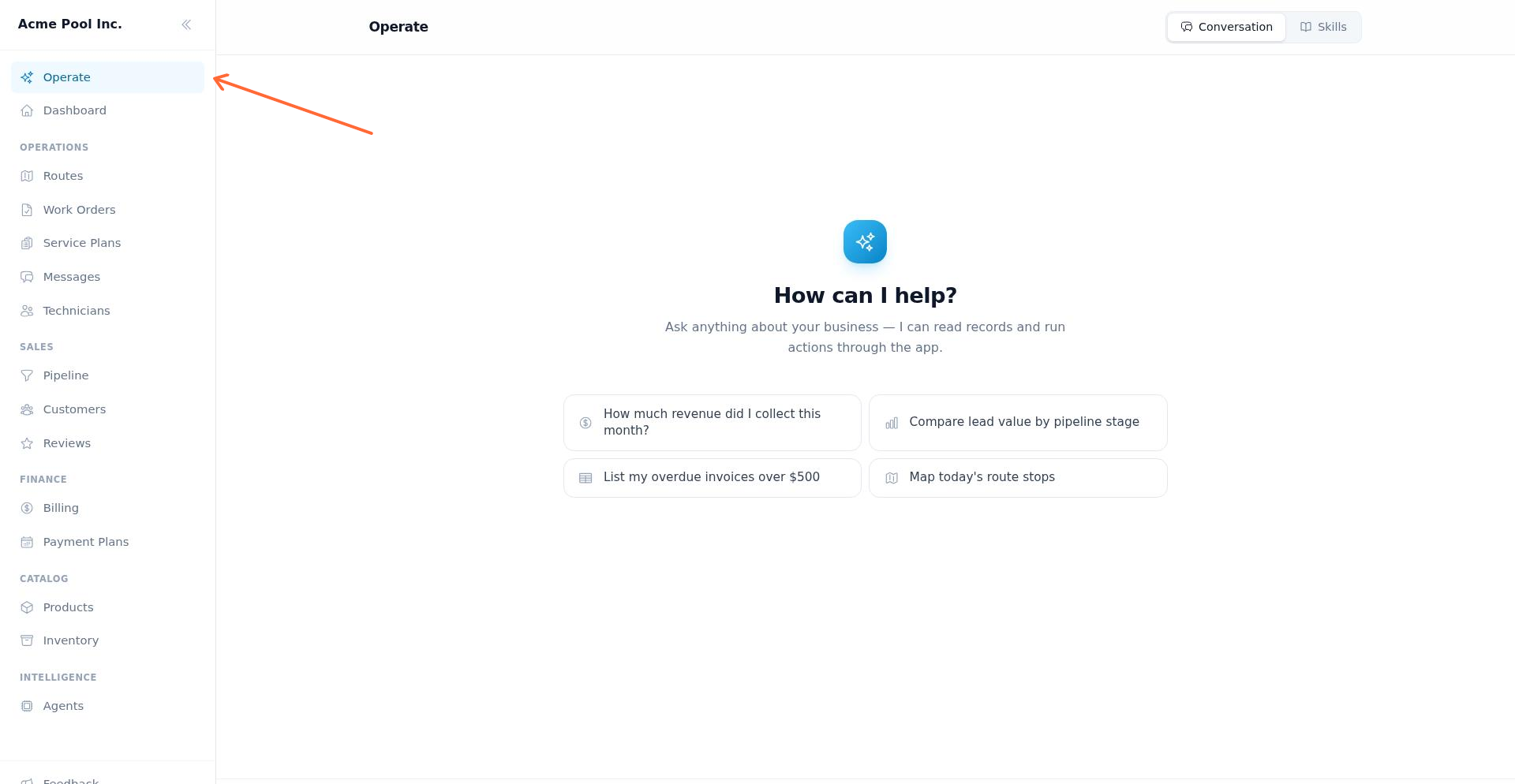
The Operate assistant is an AI-powered chat interface in your admin dashboard that answers questions about your business data and can perform actions across your Chisel Tide account. Ask about revenue, routes, invoices, customers, and more — the assistant queries your live data and presents answers as text, charts, tables, maps, or downloadable documents.
Access Operate
From any page in the admin dashboard, click Operate in the main navigation. The Operate page opens with four tabs:
Conversation — The active chat interface where you ask questions and receive answers. This is the default view.
Activity — A live feed of everything the assistant has done, including agent actions, skill runs, and your conversation turns.
Skills — The catalog of jobs the assistant can run for you, each of which can be enabled or disabled.
Insights — Reports the assistant writes on a schedule, such as morning briefings, technician snapshots, and cash-flow summaries.
Ask a question
In the Conversation tab, type your question in the composer and click Send. The assistant streams a response in real time.
When you first open the chat, you'll see example prompt cards to help you get started:
"How much revenue did I collect this month?"
"Compare lead value by pipeline stage"
"List my overdue invoices over $500"
"Map today's route stops"
Click any card to send that prompt instantly.
What the assistant can do
The Operate assistant connects to your Chisel Tide data and can:
Answer questions about your business
Summarize revenue, invoice status, and payment trends
Compare metrics across time periods or pipeline stages
List records matching specific criteria (e.g., overdue invoices, inactive customers)
Explain data relationships and surface insights
Display visual results
Beyond text, the assistant renders inline visualizations:
Stats — Single KPIs like total revenue or active customers
Charts — Trend lines, comparisons, and distributions
Tables — Lists of records with sortable columns
Maps — Geographic views of route stops or customer locations
Documents — Downloadable reports or generated files
Perform actions
The assistant can take actions on your behalf, such as updating records or triggering workflows. It is instructed to ask for confirmation before deleting data, changing status or financial fields, or taking another irreversible action.
Answer questions about the product
Beyond your business data, the assistant answers product questions — how the Tide app itself works, such as what a status means, where a setting is, or how a workflow runs. These are answered from the official Tide documentation, with citations. If the documentation doesn't cover a product question, the assistant says so rather than guessing.
Activity tab
The Activity tab shows a live, organization-wide feed of everything the assistant has done, merging agent actions, skill runs, and your conversation turns into one stream. To review and approve the autonomous workflows behind those agent actions, see Agents. Each event shows a title, timestamp, and status — running, done, failed, or needs approval. Filter by activity family, and use Present for a presentation view that can Replay today.
Skills tab
The Skills tab lists the jobs the assistant can run for you, grouped by domain — for example invoicing weekly visits, chasing overdue accounts, prepping tomorrow's routes, and asking happy customers for reviews. Each skill shows its trigger type (conversation, scheduled, or both), whether it's a built-in system skill, its schedule, and its last run. Use the switch on a skill to enable or disable it, and search or filter the list by trigger type.
Insights tab
The Insights tab is an archive of reports the assistant writes on a schedule — briefings, snapshots, and summaries. Reports are grouped by date, newer ones are marked unread, and each opens in a reading pane with expandable technical details. If no reports exist yet, enable a scheduled skill like the Morning Briefing and its reports will arrive here.
Conversation history
Each conversation maintains a thread while the chat is open, so you can ask follow-up questions and the assistant remembers the context. Follow-up context persists only while the current conversation remains open; refreshing the page or navigating away starts a fresh conversation.
Tips for best results
Be specific — Narrow questions yield clearer answers. "List overdue invoices over $500" works better than "show me invoices."
Request format — If you want a chart, table, or map, say so in your question.
Follow up — After an initial answer, ask for refinements, comparisons, or deeper details.
Problem Pools Watch report
Problem Pools Watch is a report that finds pools whose water quality has been rated Attention or Critical across consecutive recent visits, so you can send help before a recurring issue becomes a customer complaint. Ask for it in the assistant, adjust how far back it looks and how strict the streak is, and optionally run it on a schedule. Each result shows the customer and property, the latest readings, what is out of range, how many visits have been affected, and which technician performed the latest test.
Request the report
The report reviews chemistry across recent visits, not just the latest test, so a pool needs repeated bad readings to appear. In the Conversation tab, type your request into the message box and send it. Questions that work well include:
"Which pools are in trouble?"
"Any pools going green?"
"Who has chlorine problems this week?"
"Which pools need a supervisor visit?"
If nothing qualifies, the report says so in a sentence instead of showing a table.
Read a result
Each flagged pool appears as one row, sorted with the longest problem streak first and the lowest health score next. A row shows:
Customer and property — the pool's owner and service address. When a property has more than one pool, the row also names the specific pool.
Visits affected — how many consecutive recent visits were rated Attention or Critical. A value like
3+means every reading in the review window was bad, so the streak may be longer than the window.Latest — the newest reading's water-quality rating with its health score, such as
Critical (32).Latest readings — free chlorine, pH, alkalinity, cyanuric acid, phosphates, and the health score from the newest test, plus when it was taken.
What's wrong — the out-of-range problems from the latest reading, in plain language (see the flag list below).
Technician — who performed the latest test.
Customers who have been deactivated are left out of the results.
What the issue flags mean
The flags describe the latest reading. A pool is flagged when a value falls outside the healthy range:
Flag | What it means |
|---|---|
No chlorine | Free chlorine is 0. |
Low chlorine | Free chlorine is above 0 but below 1.0 ppm. The healthy band is 1.0 to 3.0 ppm. |
pH low | pH is below 7.2. |
pH high | pH is above 7.8. The healthy band is 7.2 to 7.8. |
Low alkalinity | Alkalinity is below 80 ppm. |
High cyanuric acid | Cyanuric acid (CYA) is over 100 ppm. |
High phosphates | Phosphates are at or above 500 ppb. |
Health score falling | The latest health score is at least 15 points lower than the oldest reading in the review window. This flag is only calculated when at least three readings are in the window. |
Chlorine and pH flags are based on the latest reading; the falling-score flag compares readings across the window.
Adjust the review window, streak, and result limit
Ask for the change in the same conversation, in plain language: "look back over the last 60 days", "only show pools that have been bad for at least 4 visits", or "give me more rows". Three settings control the report:
Setting | Default | Range | What it controls |
|---|---|---|---|
Review window | 28 days | 7 to 90 days | How far back the report looks for readings. |
Minimum streak | 2 visits | 1 to 5 visits | How many consecutive Attention or Critical readings a pool needs to appear. |
Result limit | 25 pools | 1 to 200 | How many rows the report returns. |
Use a minimum streak of 3 to find chronic problems, or 1 to catch anything bad on the latest visit. A pool whose newest reading is Critical always appears, no matter how the streak is set. Values outside the allowed ranges are adjusted to the nearest limit, and the report counts every qualifying pool even when it shows fewer rows than qualified.
Schedule the report
Problem Pools Watch can also run on its own. Open the Skills tab, find Problem Pools Watch, and turn on its enable switch. The skill stays available in conversation and additionally runs on its default schedule, Thursday mornings at 7 AM, which leaves a service day to get a lead tech out before the weekend.
Act on the results
The report ends with up to three suggested follow-up actions where the data supports them, such as arranging a lead tech or supervisor visit during the week, scheduling a phosphate treatment, or starting a drain conversation with the customer about a chronically high cyanuric acid level. Create a work order to assign the follow-up visit to a technician.
If every flagged pool sits on one technician's route, treat that as a lead: the pattern can point to a training or test-kit problem rather than a water problem. For a salt pool with low chlorine, check the salt cell before adding chlorine.
Run the report each week and work down the results in order: rows with the longest streaks and lowest health scores need attention first.
Troubleshooting
The assistant says it couldn't answer
Chat fails to start
If you see an error like "Failed to create chat thread" or "Failed to start chat", refresh the page and try again. If the problem persists, check your network connection and ensure you're signed in.
Response seems incomplete or wrong
The assistant works from live data in your Chisel Tide account. If the response doesn't match your expectations, verify the underlying records in the relevant section (Routes, Customers, Invoices, etc.). You can also use the Regenerate action in the assistant message's action bar.
Was this helpful?
Was this helpful?