
A valid link can be used up to five times during its 15-minute lifetime. If the link is invalid or expired, request a new one by returning to the sign-in page and entering your email.
Signing in
Chisel Tide uses passwordless authentication. Instead of a password, you sign in with a magic link sent to your email address. This approach is more secure—there's no password to forget, reuse, or have stolen.
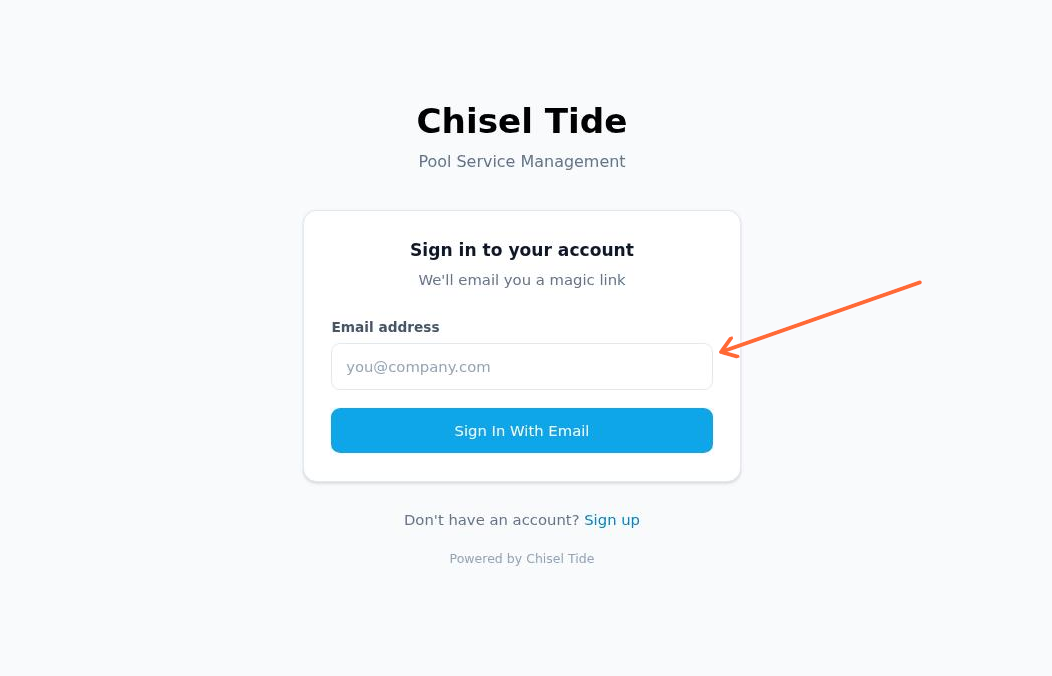
Go to the Sign in page at
/signin.Enter your work email address in the Email address field.
Complete the browser verification step when it appears. The button may show Verifying browser… until verification finishes.
Click Sign In With Email.
Check your email inbox for a message from Chisel Tide.
Click the link in the email to complete sign-in and access your dashboard.
The magic link expires after 15 minutes. If you don't click it within that window, you'll need to request a new one.
If you don't see the email within a few minutes, check your spam or junk folder. The email is sent immediately, but spam filters can delay delivery.
Technicians who open the web app are directed to download the mobile app rather than using the full office dashboard.
Error messages
If something goes wrong during sign-in, you'll see one of these messages:
This sign-in link is invalid or has already been used
This sign-in link has expired. Please request a new one.
Links expire after 15 minutes. Return to the sign-in page and enter your email again to receive a fresh link.
No account found for this email address.
There's no Chisel Tide account associated with the email you entered. Make sure you're using the correct work email—the one your company used when setting up your account. If you're unsure, contact your administrator.
Too many sign-in attempts. Please wait and try again later.
You've requested multiple magic links in a short period. Wait a few minutes before trying again. This limit helps protect against abuse.
Something went wrong. Please try again.
An unexpected error occurred. Wait a moment and try again. If the problem persists, contact support.
If you're a pool service customer—not a Chisel Tide business user—you sign in through a different page.
The customer portal login is at /portal. This is separate from the main Chisel Tide sign-in page. Your pool service provider should give you the correct URL to access your account.
The customer portal also uses magic link authentication:
Enter Your email or phone on the portal login page.
Click Send my magic link.
Check your inbox or text messages and click the link to access your service history, invoices, and photos.
If the same person can access more than one customer account, the portal shows Switch account after sign-in so they can move between those accounts.
If you see Portal access has been disabled for your account, contact your pool service provider directly. They manage access to your customer portal account.
Creating a new account
If you don't have an account yet, you can sign up at /signup. The signup page asks for your work email and company name. After you submit the form (including browser verification when shown), you'll receive a verification email with a link to activate your account.
If signups are restricted to approved email domains and your domain isn't approved, you'll see a message directing you to contact your administrator.
Was this helpful?
Was this helpful?